Setting the selection indicator options on mouse/touch selection
You can specify how a cell should be visually highlighted when you select it and/or point at it.
Depending on the type of mouse/touch selection, some indicator options may or may not be available.
- Choose
 Menu >
  Settings.
 - Choose
 Access.
 - Choose Mouse/Touch.
- In the Indicator options group, specify the following options:
Option Procedure Choose mode From the drop-down list, choose one of the following options: - When selecting: shows the indicator only when you select the cell.
- When pointing: shows the indicator when you point to or select the cell.
Hide the mouse pointer(only with Choose mode > When pointing) You can choose to hide the mouse pointer so that only the indicator of the cell is visible when pointing at it. - In the Indicator options group, in Visual indicator, select one of the following visual views for the cell indicator from the drop-down list. To change the color of the indicator, choose the color cell next to the drop-down list.
Visual indicator Example None No indicator is displayed.
Border 
Border (wide) 
Border (extra wide) 
Color background 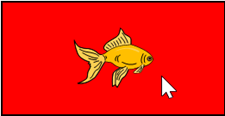
Dot (bottom) 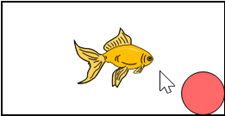
Dot (middle) 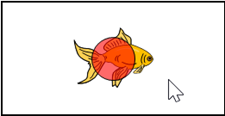
Dot (top) 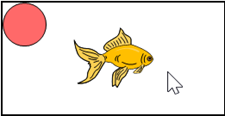
- In the Indicator options group, specify the remaining options:
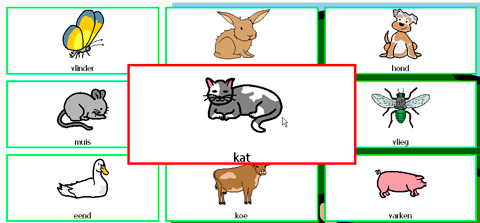
Option Procedure Enlarge cell You can enlarge the cell that is highlighted.
Drag the slider to set the enlargement of the cell. You can fine-tune the magnification with
 and
and  .
.
Sound when selecting Choose Yes to hear a short sound during the selection process. - Choose OK.